Your Flutter build on Codemagic stops before it even starts with No matching profiles found for bundle identifier "com.example.app" and distribution type "app_store", or it gets further and dies at the archive step because the app was never signed. Both are Codemagic iOS code signing problems with one root cause: the build machine has no provisioning profile and matching distribution certificate for your exact bundle ID. Here is what that means, how I set up automatic signing with an App Store Connect API key, and how to check each step in the build log.
Quick answer
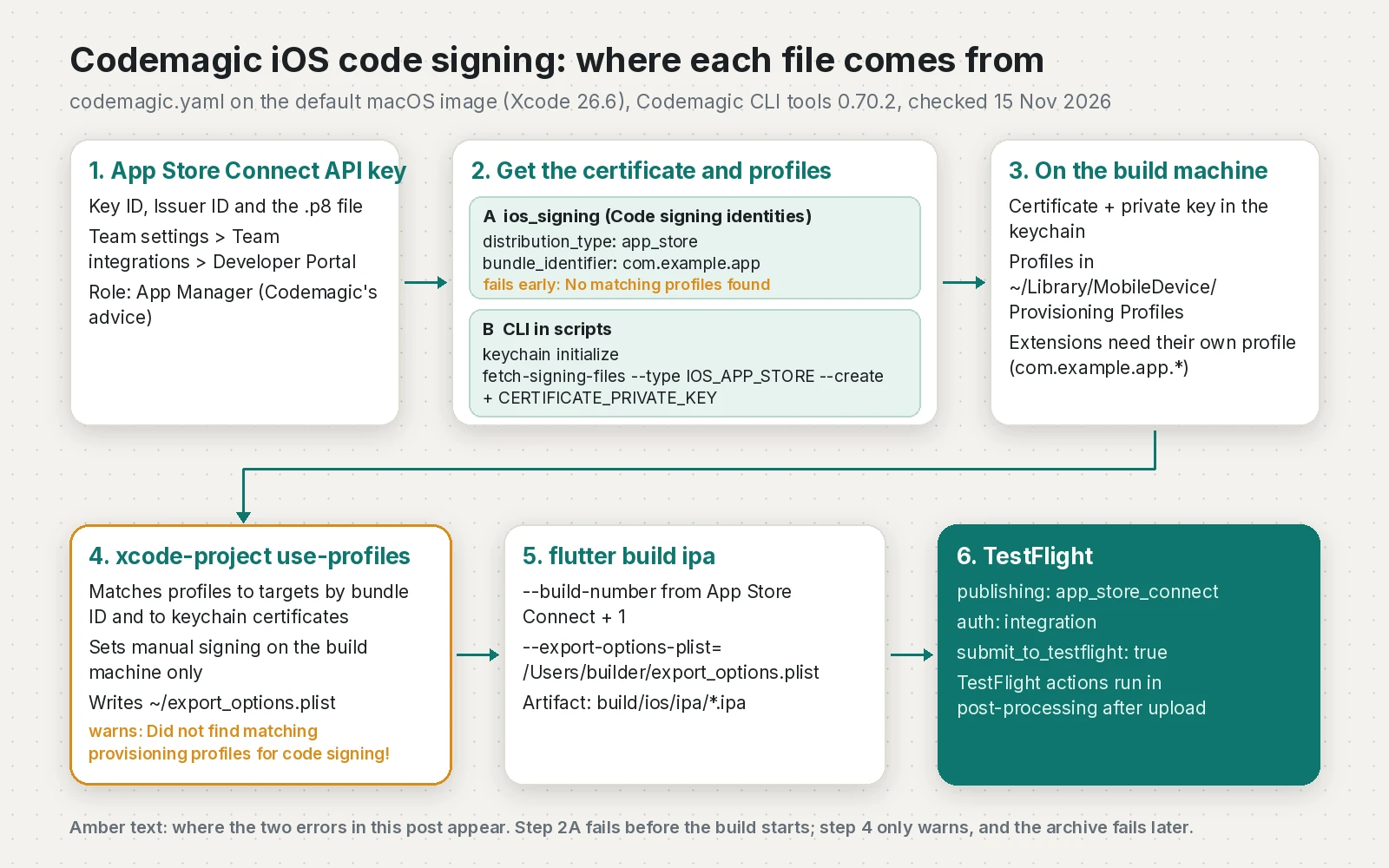
The error means ios_signing in your codemagic.yaml asks for an App Store profile for that bundle ID, but none exists under Team settings, Code signing identities. Add the App Store Connect API key under Team integrations, generate or upload an Apple Distribution certificate, fetch an App Store profile for the app and every extension, then run xcode-project use-profiles before flutter build ipa --export-options-plist=/Users/builder/export_options.plist. If you prefer scripts, app-store-connect fetch-signing-files "$BUNDLE_ID" --type IOS_APP_STORE --create with a CERTIFICATE_PRIVATE_KEY does the same job.
What this means for your app or business
Apple only accepts apps that are signed. Signing uses two files. The certificate proves who built the app. The provisioning profile is a small file from Apple that says "this app ID, signed with this certificate, may be distributed this way (for example through the App Store or TestFlight)". If either file is missing or the two do not match, no build reaches your testers.
- Cost: every failed build delays a release or a hotfix and burns paid macOS build time.
- Risk: distribution certificates expire after one year and can be revoked from the developer account. Manual setups break on the day nobody remembers how they were made.
- Time to fix: usually an hour or two with Account Holder or Admin access to the Apple Developer account. Longer if the account owner is unknown, the certificate limit is reached, or the app has extensions.
- When to get help: if builds worked last month and fail now, or nobody can log in to the Apple account, have a developer audit the setup once and move it to automatic signing.
What does "No matching profiles found for bundle identifier" mean on Codemagic?
Codemagic's common iOS issues page shows the message exactly like this:
No matching profiles found for bundle identifier "io.example.test" and distribution type "app_store"It appears when a build starts. With distribution_type and bundle_identifier, Codemagic looks in Code signing identities for an uploaded profile of that type and bundle ID. It does not create one. If the profile was never added, belongs to another bundle ID, or is a Development or Ad Hoc profile, the lookup fails.
A second message comes from xcode-project use-profiles when no profile on the machine matches a target (source):
Did not find matching provisioning profiles for code signing!It is only a warning, so the step passes and the build usually fails later in flutter build ipa.
Why does Codemagic iOS code signing fail?
| Message or symptom | Usual cause | Fix |
|---|---|---|
| No matching profiles found for bundle identifier ... and distribution type "app_store" | No App Store profile for that bundle ID in Code signing identities | Fetch or upload the profile in Team settings |
| Profile shows a red cross ("Not uploaded") next to Certificate | The uploaded certificate is not included in that profile | Edit the profile in the Apple portal, select that certificate, re-download and re-upload |
| Did not find matching provisioning profiles for code signing! | Profiles do not match any target's bundle ID, or their certificate is not in the keychain | Check bundle IDs per target and the keychain step |
| Did not find provisioning profile matching bundle identifier ... for target ... | An extension target has no profile of its own | Add a profile for com.example.app.* targets |
| No valid code signing certificates were found (Flutter tool) | security find-identity -p codesigning -v returns no valid identity | Make sure the certificate with its private key is installed |
| There is a problem with the request entity - You already have a current Distribution certificate or a pending certificate request. | Apple's Distribution certificate limit is reached | Revoke an unused certificate or upload an existing one |
How do I fix it with automatic signing?
These steps follow Codemagic's iOS signing guide. You need team admin rights in Codemagic.
Step 1: add the App Store Connect API key
In App Store Connect, open Users and Access, Integrations, App Store Connect API and create a key with the App Manager role, as Codemagic recommends. Download the .p8 file (only possible once) and note the Key ID and Issuer ID. In Codemagic, add it under Team settings, Team integrations, Developer Portal, Manage keys, with a name such as codemagic_asc_key. integrations: app_store_connect: refers to that name.
Step 2: get an Apple Distribution certificate into Codemagic
In Team settings, codemagic.yaml settings, Code signing identities, iOS certificates, you have three choices:
- Generate certificate: pick Apple Distribution and your API key. Download it with its password (shown once), then upload it on the same tab.
- Fetch certificate: only for certificates Codemagic generated, since it has no access to private keys created elsewhere.
- Upload certificate: a
.p12with the certificate and its private key.
Step 3: add a profile for the app and every extension
On the iOS provisioning profiles tab, click Fetch profiles, choose the App Store profile for your bundle ID, give it a reference name, and check for a green tick in the Certificate column. Add one App Store profile per extension (notification service, widget, share). With bundle_identifier: com.example.app, Codemagic also picks up com.example.app.* profiles. If no profile exists, an Account Holder or Admin can create one. Apple notes that an App Store profile contains a single distribution certificate, so the two must be paired.
Step 4: the codemagic.yaml workflow
workflows:
  ios-testflight:
    name: iOS TestFlight
    instance_type: mac_mini_m2
    max_build_duration: 60
    integrations:
      app_store_connect: codemagic_asc_key
    environment:
      ios_signing:
        distribution_type: app_store
        bundle_identifier: com.example.app
      vars:
        APP_STORE_APPLE_ID: 1555555551
      flutter: stable
      xcode: 26.6
    scripts:
      - name: Set up code signing settings on Xcode project
        script: xcode-project use-profiles
      - name: Get Flutter packages
        script: flutter pub get
      - name: Install pods
        script: find . -name "Podfile" -execdir pod install \;
      - name: Flutter build ipa
        script: |
          flutter build ipa --release \
            --build-number=$(($(app-store-connect get-latest-testflight-build-number "$APP_STORE_APPLE_ID") + 1)) \
            --export-options-plist=/Users/builder/export_options.plist
    artifacts:
      - build/ios/ipa/*.ipa
      - /tmp/xcodebuild_logs/*.log
    publishing:
      app_store_connect:
        auth: integration
        submit_to_testflight: true
        beta_groups:
          - Internal QA
APP_STORE_APPLE_ID is the numeric Apple ID from App Information in App Store Connect. With ios_signing, Codemagic installs the files itself, so keychain initialize is not needed. use-profiles writes ~/export_options.plist, which is /Users/builder/export_options.plist on Codemagic. Publishing also needs an existing app record in App Store Connect.
The script option: fetch-signing-files
The alternative methods guide has the CLI fetch or create the files at build time. Create a key with ssh-keygen -t rsa -b 2048 -m PEM -f ~/Desktop/ios_distribution_private_key -q -N "" (or export an existing certificate's key) and save its contents as the secret CERTIFICATE_PRIVATE_KEY in a variable group.
workflows:
  ios-testflight-cli:
    name: iOS TestFlight (CLI signing)
    instance_type: mac_mini_m2
    integrations:
      app_store_connect: codemagic_asc_key
    environment:
      groups:
        - code-signing
      vars:
        BUNDLE_ID: com.example.app
      flutter: stable
    scripts:
      - name: Set up keychain
        script: keychain initialize
      - name: Fetch signing files
        script: |
          app-store-connect fetch-signing-files "$BUNDLE_ID" \
            --type IOS_APP_STORE \
            --create
      - name: Add certificates to keychain
        script: keychain add-certificates
      - name: Set up code signing settings on Xcode project
        script: xcode-project use-profiles
      - name: Flutter build ipa
        script: |
          flutter pub get
          flutter build ipa --release \
            --export-options-plist=/Users/builder/export_options.plist
--type defaults to IOS_APP_DEVELOPMENT, so leaving it out gives you development profiles that TestFlight rejects. The bundle ID also matches extensions such as com.example.app.NotificationService unless you add --strict-match-identifier.
What about manual signing with a .p12 and profile?
Use it when a client owns the certificate and will not share API access. Upload the .p12 and .mobileprovision in Code signing identities, then keep distribution_type plus bundle_identifier, or list files by reference name under ios_signing.certificates and ios_signing.provisioning_profiles (not both styles). Nothing renews itself here, so note the expiry date.
Should the Xcode project use automatic or manual signing?
Keep what works locally; most Flutter projects leave "Automatically manage signing" on. On the build machine, use-profiles switches each matched target to CODE_SIGN_STYLE = Manual with the profile's name and certificate (code_signing_manager.rb), and nothing is committed back. What must be right is the bundle ID of every target and configuration, because matching is by bundle ID. On GitHub Actions you have to set manual signing in the project yourself.
How do I verify the fix?
Add a short check step after use-profiles:
keychain list-certificates
security find-identity -v -p codesigning
ls "$HOME/Library/MobileDevice/Provisioning Profiles"
You want one valid Apple Distribution identity and one profile per target. In the use-profiles output, look for - Using profile "MyApp App Store" [UUID] for target "Runner" [Release] from project "Runner", then Completed configuring code signing settings and Saved export options to /Users/builder/export_options.plist. Add --code-signing-setup-verbose-logging for more detail. After the build, xcode-project ipa-info build/ios/ipa/*.ipa shows the IPA details from its embedded profile.
How do I prevent it next time?
Share one Codemagic-generated Apple Distribution certificate across the team. Refetch profiles after adding a capability, since Codemagic notes that changing capabilities or a profile's certificates invalidates it. Add an extension's profile in the same pull request as the extension. If the upload is then rejected for something else, see the ITMS-91061 privacy manifest fix; the Android equivalent is the Play "caller does not have permission" error.
Summary: which signing method should I use?
| Method | Files come from | Renewal | Best for |
|---|---|---|---|
ios_signing with distribution_type and bundle_identifier | Code signing identities, fetched from the Apple portal | Refetch in the UI | Most Flutter apps |
fetch-signing-files --create with CERTIFICATE_PRIVATE_KEY | Apple, at build time | Automatic for keys you created for Codemagic | Teams that want everything in scripts |
Manual .p12 and profile | Files you export and upload | Manual, yearly | Client-owned certificates without API access |
Checklist
- App Store Connect API key (App Manager) added under Team integrations, and its name matches
integrations: app_store_connect. - Apple Distribution certificate in Code signing identities, generated by Codemagic or uploaded as a
.p12with its private key. - One App Store profile per bundle ID (app and each extension), each with a green certificate tick.
distribution_type: app_storeand the exact bundle ID inios_signing.xcode-project use-profilesruns beforeflutter build ipa --export-options-plist=/Users/builder/export_options.plist.- No "Did not find matching provisioning profiles" warning in the log.
- Build number increased from the latest TestFlight build, and
auth: integrationset under publishing.
Frequently asked questions
What does No matching profiles found for bundle identifier mean on Codemagic?
Your codemagic.yaml uses ios_signing with a distribution_type and bundle_identifier, but Code signing identities has no uploaded provisioning profile of that type for that bundle ID. Fetch or upload an App Store profile for the app and each extension in Team settings, then rebuild.
What is a provisioning profile?
A provisioning profile is a file from Apple that ties your app ID to a signing certificate and says how the app may be distributed, for example through the App Store and TestFlight. An App Store profile contains one distribution certificate, and the build must be signed with that certificate.
How does Codemagic automatic signing work with an App Store Connect API key?
You add the API key under Team integrations, Developer Portal, and Codemagic uses it to generate certificates and fetch profiles from Apple. With the CLI option, app-store-connect fetch-signing-files with --create and a CERTIFICATE_PRIVATE_KEY fetches or creates the certificate and profile during each build.
How do I create an iOS signing certificate for Codemagic?
In Codemagic Team settings, open Code signing identities, iOS certificates, click Generate certificate, choose Apple Distribution and your API key, then download it and upload it on the same tab. You can also upload an existing .p12 file that includes the private key.
Why does Codemagic say I already have a current Distribution certificate?
Codemagic's docs say Apple allows 3 Apple Distribution certificates per team, and creating another fails once that limit is reached. Revoke one you no longer use in the Apple Developer portal, or upload an existing certificate instead.
Do app extensions need their own provisioning profile on Codemagic?
Yes. Each extension, such as a notification service or widget, needs its own App Store profile. With bundle_identifier set to com.example.app, Codemagic also picks up profiles for bundle IDs that start with com.example.app followed by a dot.
Should I use Codemagic signing or fastlane match?
Both work. Codemagic's built-in signing keeps certificates and profiles in your Codemagic team and needs no extra repository, while fastlane match stores encrypted signing files in a private git repo, Google Cloud or Amazon S3 that every CI system and developer can share. If you already use match, Codemagic can run fastlane in its scripts.
Sources
- Signing iOS apps (Codemagic Docs)
- Alternative code signing methods (Codemagic Docs)
- Common iOS issues (Codemagic Docs)
- App Store Connect publishing using codemagic.yaml (Codemagic Docs)
- Flutter apps with codemagic.yaml (Codemagic Docs)
- Xcode 26.6.x (default) build machine (Codemagic Docs)
- Codemagic CLI tools changelog (0.70.2) (Codemagic on GitHub, 2026-10-29)
- xcode-project use-profiles (Codemagic on GitHub)
- app-store-connect fetch-signing-files (Codemagic on GitHub)
- code_signing_settings_manager.py (Codemagic on GitHub)
- Flutter tools iOS code signing source (Flutter on GitHub)
- Create an App Store provisioning profile (Apple Developer)
- Certificates overview (Apple Developer)
- Upcoming requirements (Apple Developer)
- Fastlane integration (Codemagic Docs)
- fastlane match (fastlane docs)
Keep reading
- No Signing Certificate iOS Distribution Found: Flutter CI FixFlutter iOS builds failing in GitHub Actions with no signing certificate found? Import the .p12 and profile, sign manually and upload to TestFlight.
- ITMS-91061 Missing Privacy Manifest in Flutter: How to Fix ItGot ITMS-91061 after uploading a Flutter iOS build? Find the SDK Apple names, upgrade Flutter, plugins and pods, and verify the IPA before re-uploading.
- Google Play "The caller does not have permission": Fix CI UploadsYour AAB upload from GitHub Actions or fastlane fails with a 403? Invite the service account for that app in Play Console and verify it with a tested script.
Comments
Share a question or note about this article.
Loading comments…