flutter build ipa works on your Mac, but the same build in GitHub Actions stops with: No signing certificate "iOS Distribution" found: No "iOS Distribution" signing certificate matching team ID "ABCDE12345" with a private key was found. The runner is a clean macOS machine. It has no Apple account, no keychain with your certificate and no provisioning profile, so anything Xcode found by magic on your laptop has to be provided explicitly. Here is why the error appears, the complete workflow I use to build a Flutter iOS app and upload it to TestFlight from GitHub Actions, and the checks that tell you which part is broken.
Quick answer
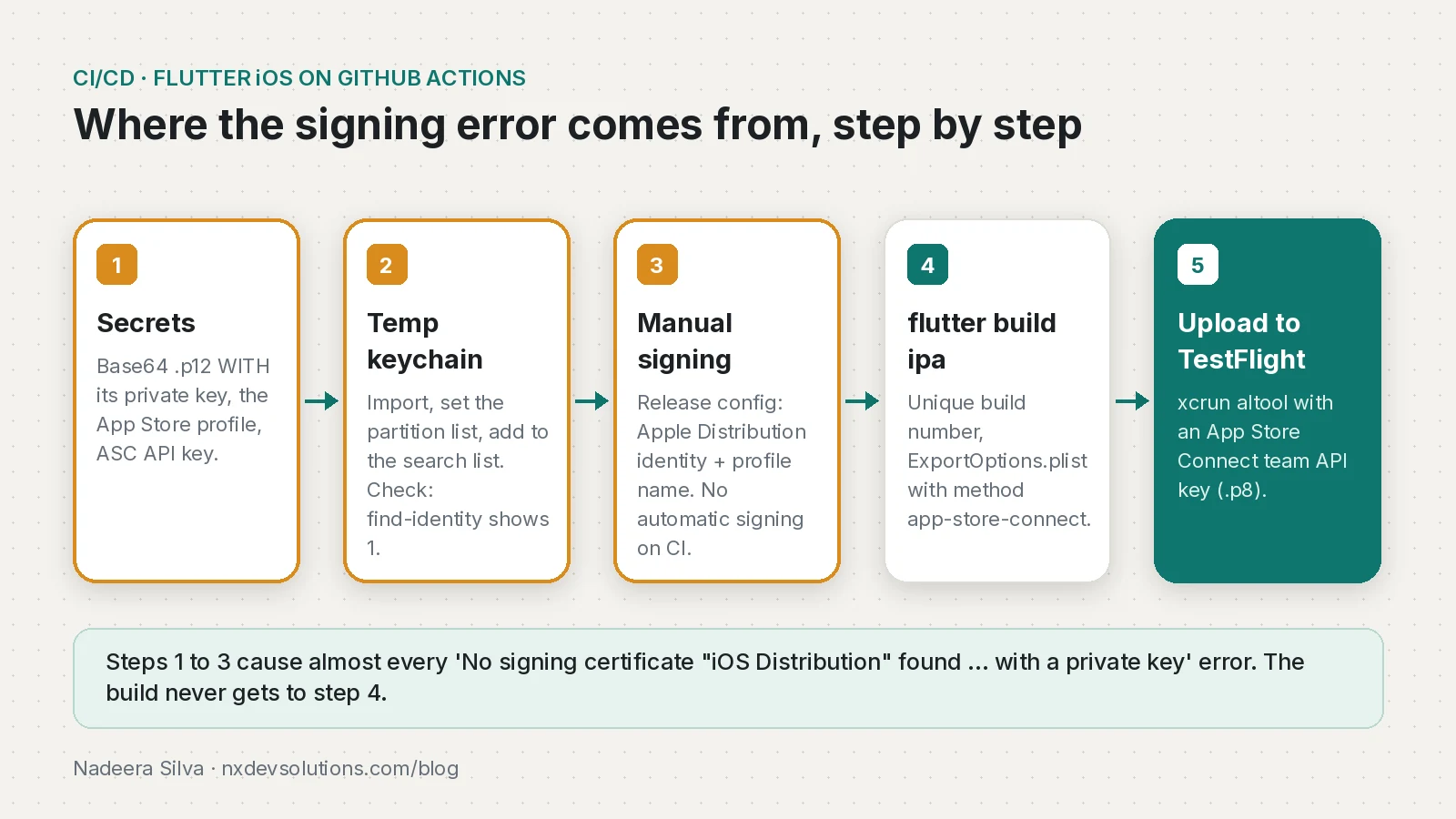
The error means the runner's keychain has no Apple Distribution certificate with its private key for your team. Export the certificate from Keychain Access as a .p12 that includes the private key, store it and the App Store provisioning profile as base64 GitHub secrets, import them into a temporary keychain in the workflow, switch the Runner target's Release configuration to manual signing, and build with flutter build ipa --export-options-plist.
What this means for your app or business
Without working CI, every iOS release depends on one developer's Mac. When that person is away, or their certificate expires, nobody can ship a hotfix. Automated builds also catch problems the day they are introduced instead of the day before a launch.
Setting this up is a one-time job of a few hours if the Apple account is in order. Expect more time if certificates are expired, nobody knows who owns the Apple Developer account, or the app has extensions (widgets, notification services) that each need their own profile. Those are the cases where hiring help usually pays off.
Why does "No signing certificate iOS Distribution found" happen in CI?
The last words of the error, "with a private key", are the clue. A signing identity is a certificate plus its private key. On your Mac, the private key sits in your login keychain. In CI, it only exists if you put it there. The usual causes:
| Error or symptom | Cause | Fix |
|---|---|---|
| No signing certificate "iOS Distribution" found ... with a private key | .p12 exported without the private key, or import failed | Re-export from Keychain Access, My Certificates, with the key |
security find-identity shows 0 valid identities | Keychain not in the search list, or wrong password | Use security list-keychain -d user -s and check P12_PASSWORD |
| No Accounts, or "Automatic signing is disabled and unable to generate a profile" | Project uses automatic signing; the runner has no Apple ID | Manual signing for Release, profile named explicitly |
| Provisioning profile doesn't include signing certificate | Profile created before the certificate was renewed | Regenerate the profile in the developer portal, update the secret |
| Profile not found for an extension target | Each extension needs its own App Store profile | Add every bundle ID to provisioningProfiles |
| Build upload rejected as a duplicate | Build number already used | Pass --build-number=${{ github.run_number }} |
Step 1: export the right files
You need four things from your Apple account:
- The Apple Distribution certificate as .p12, with its private key. In Keychain Access, open My Certificates (not Certificates), expand the Apple Distribution entry so you can see the key under it, select both, and export. Set a strong export password. If the key is missing on your Mac, the certificate was created on another machine; either get the
.p12from that person or create a new certificate. - An App Store provisioning profile for the app's bundle ID (and one for each extension), downloaded from Certificates, Identifiers & Profiles. It must include the certificate from step 1.
- An App Store Connect API team key (
.p8), its key ID and issuer ID, from Users and Access, Integrations. Use a team key (not an individual key) with a role that can upload builds, such as App Manager. - Your Team ID.
Convert the binary files to base64 and save them as repository secrets:
base64 -i dist.p12 | pbcopy                    # -> secret BUILD_CERTIFICATE_BASE64
base64 -i MyApp_AppStore.mobileprovision | pbcopy   # -> BUILD_PROVISION_PROFILE_BASE64
# also add: P12_PASSWORD, KEYCHAIN_PASSWORD (any random string),
# ASC_KEY_ID, ASC_ISSUER_ID, ASC_KEY_P8 (the .p8 file contents)
Step 2: switch the Release configuration to manual signing
Automatic signing needs a signed-in Apple account to create or fetch profiles, which a CI runner does not have. In Xcode, open ios/Runner.xcworkspace, select the Runner target, Signing & Capabilities, the Release tab, untick "Automatically manage signing", and pick your team and the App Store profile. Leave Debug on automatic so local development keeps working. The resulting build settings look like this:
CODE_SIGN_STYLE = Manual
DEVELOPMENT_TEAM = ABCDE12345
CODE_SIGN_IDENTITY = "Apple Distribution"
PROVISIONING_PROFILE_SPECIFIER = "MyApp AppStore"
Then add ios/ExportOptions.plist, which tells flutter build ipa how to export:
<?xml version="1.0" encoding="UTF-8"?>
<!DOCTYPE plist PUBLIC "-//Apple//DTD PLIST 1.0//EN" "http://www.apple.com/DTDs/PropertyList-1.0.dtd">
<plist version="1.0">
<dict>
  <key>method</key>
  <string>app-store-connect</string>
  <key>teamID</key>
  <string>ABCDE12345</string>
  <key>signingStyle</key>
  <string>manual</string>
  <key>signingCertificate</key>
  <string>Apple Distribution</string>
  <key>provisioningProfiles</key>
  <dict>
    <key>com.example.myapp</key>
    <string>MyApp AppStore</string>
  </dict>
</dict>
</plist>Step 3: the GitHub Actions workflow
This builds on GitHub's documented keychain script, adds a check that fails fast when the identity is missing, and uploads with altool as Flutter's guide shows.
name: iOS TestFlight
on:
  push:
    tags: ['v*']
  workflow_dispatch:

jobs:
  ios:
    runs-on: macos-26          # Xcode 26.6 by default; Apple requires Xcode 26+ since 28 Apr 2026
    timeout-minutes: 45
    steps:
      - uses: actions/checkout@v6

      - uses: subosito/flutter-action@v2
        with:
          flutter-version: 3.50.0
          channel: stable
          cache: true

      - name: Install certificate and provisioning profile
        env:
          BUILD_CERTIFICATE_BASE64: ${{ secrets.BUILD_CERTIFICATE_BASE64 }}
          P12_PASSWORD: ${{ secrets.P12_PASSWORD }}
          BUILD_PROVISION_PROFILE_BASE64: ${{ secrets.BUILD_PROVISION_PROFILE_BASE64 }}
          KEYCHAIN_PASSWORD: ${{ secrets.KEYCHAIN_PASSWORD }}
        run: |
          CERTIFICATE_PATH=$RUNNER_TEMP/build_certificate.p12
          PP_PATH=$RUNNER_TEMP/build_pp.mobileprovision
          KEYCHAIN_PATH=$RUNNER_TEMP/app-signing.keychain-db

          echo -n "$BUILD_CERTIFICATE_BASE64" | base64 --decode -o $CERTIFICATE_PATH
          echo -n "$BUILD_PROVISION_PROFILE_BASE64" | base64 --decode -o $PP_PATH

          security create-keychain -p "$KEYCHAIN_PASSWORD" $KEYCHAIN_PATH
          security set-keychain-settings -lut 21600 $KEYCHAIN_PATH
          security unlock-keychain -p "$KEYCHAIN_PASSWORD" $KEYCHAIN_PATH
          security import $CERTIFICATE_PATH -P "$P12_PASSWORD" -A -t cert -f pkcs12 -k $KEYCHAIN_PATH
          security set-key-partition-list -S apple-tool:,apple: -k "$KEYCHAIN_PASSWORD" $KEYCHAIN_PATH
          security list-keychain -d user -s $KEYCHAIN_PATH

          mkdir -p ~/Library/MobileDevice/Provisioning\ Profiles
          cp $PP_PATH ~/Library/MobileDevice/Provisioning\ Profiles

          # Fail fast: expect "1 valid identities found"
          security find-identity -v -p codesigning $KEYCHAIN_PATH
          security find-identity -v -p codesigning $KEYCHAIN_PATH | grep -q "Apple Distribution" \
            || { echo "No Apple Distribution identity with a private key in the keychain"; exit 1; }

      - name: Write App Store Connect API key
        env:
          ASC_KEY_ID: ${{ secrets.ASC_KEY_ID }}
          ASC_KEY_P8: ${{ secrets.ASC_KEY_P8 }}
        run: |
          mkdir -p ~/.appstoreconnect/private_keys
          printf '%s' "$ASC_KEY_P8" > ~/.appstoreconnect/private_keys/AuthKey_${ASC_KEY_ID}.p8

      - run: flutter pub get

      - name: Build IPA
        run: |
          flutter build ipa --release \
            --build-number=${{ github.run_number }} \
            --export-options-plist=ios/ExportOptions.plist

      - name: Upload to TestFlight
        env:
          ASC_KEY_ID: ${{ secrets.ASC_KEY_ID }}
          ASC_ISSUER_ID: ${{ secrets.ASC_ISSUER_ID }}
        run: |
          xcrun altool --upload-app --type ios -f build/ios/ipa/*.ipa \
--apiKey "$ASC_KEY_ID" --apiIssuer "$ASC_ISSUER_ID"How do I check which part is broken?
Run these on the runner (or locally) in this order:
security find-identity -v -p codesigning "$RUNNER_TEMP/app-signing.keychain-db"should print one valid Apple Distribution identity. Zero means the key is missing or the import failed.security cms -D -i ~/Library/MobileDevice/Provisioning\ Profiles/build_pp.mobileprovisionprints the profile as XML. CheckNamematchesPROVISIONING_PROFILE_SPECIFIER,TeamIdentifiermatches your team,ExpirationDateis in the future, andapplication-identifierends with your bundle ID.- If the archive succeeds but export fails, the problem is in ExportOptions.plist: usually a bundle ID missing from
provisioningProfiles.
A successful run ends with altool reporting no errors. Apple then processes the build, and Flutter's guide says you should get an email within about 30 minutes when it is ready in TestFlight.
How do I prevent it next time?
- Put the certificate expiry date (one year from creation) in a shared calendar, and regenerate the profile whenever you renew the certificate.
- Keep the Apple Developer account under the business, not under a freelancer's personal Apple ID.
- Pin the macOS image and Flutter version, and change them on purpose.
macos-latestmoves on its own schedule. - Add a weekly scheduled run so an expired secret fails on a Monday, not on release day.
For the Android side of the same pipeline and how I structure CI for small products, see my CI/CD pipeline for a solo SaaS. If Xcode 27 is next on your list, the UIScene migration guide covers the change most Flutter apps need first.
Frequently asked questions
What does No signing certificate iOS Distribution found mean?
Xcode could not find a distribution certificate together with its private key for your team in any keychain on the machine. On a CI runner that usually means the .p12 was exported without the key or was never imported into the keychain.
How do I export a .p12 with the private key?
In Keychain Access open My Certificates, expand the Apple Distribution certificate so the private key shows under it, select both and export them as a .p12 with a password.
Can I use automatic signing in GitHub Actions?
Not in the usual setup, because the runner has no signed-in Apple account. Use manual signing for the Release configuration with an explicit profile, and keep automatic signing for Debug.
Which macOS runner should I use for Flutter iOS builds?
As of November 2026, macos-26 runs Xcode 26.6 by default, which meets Apple's rule that uploads since 28 April 2026 must be built with Xcode 26 or later.
How do I upload a Flutter IPA to TestFlight from CI?
Use xcrun altool --upload-app with an App Store Connect team API key placed in ~/.appstoreconnect/private_keys, or fastlane upload_to_testflight with the same key.
Why is my TestFlight upload rejected as a duplicate build?
Every upload needs a new build number. Pass --build-number with the GitHub run number or another value that always increases.
Sources
- Installing an Apple certificate on macOS runners for Xcode development (GitHub Docs)
- macOS 26 arm64 runner image (Xcode 26.6 default) (actions/runner-images on GitHub, 2026-11-02)
- Build and release an iOS app (Flutter Docs)
- Upcoming requirements (Xcode 26 SDK minimum since 28 April 2026) (Apple Developer)
- Upload builds (App Store Connect Help)
- Using altool (Apple)
- subosito/flutter-action v2.23.0 (GitHub, 2026-03-25)
Keep reading
- fastlane match password: Fix "Couldn't decrypt the repo"Why fastlane match says "Couldn't decrypt the repo" on GitHub Actions when your passphrase is right, and how to fix MATCH_PASSWORD for Flutter iOS builds.
- Codemagic iOS Code Signing: No Matching Profiles Found FixWhy Codemagic says no matching profiles were found for your bundle identifier, and how to set up iOS code signing for a Flutter app that ships to TestFlight.
- GitHub Actions CI/CD for a Solo SaaS: Tests, SSH Deploy and Prisma MigrationsThe GitHub Actions pipeline I run for Pactroom: tests, build, SSH deploy to a VPS, prisma migrate deploy and a health check, with a workflow you can adapt.
Comments
Share a question or note about this article.
Loading comments…