
Your Flutter or Android build passes, the signed AAB is ready, and then the upload step in GitHub Actions, Codemagic or fastlane dies with Google Play "The caller does not have permission" (HTTP 403). The key file is valid and the build is fine. What is missing is access: Google accepted who the service account is, then refused to let it touch that app. This guide shows the exact links in that chain, how to fix each one, and a small script that proves the fix before your next release.
Quick answer
"The caller does not have permission" means the service account in your JSON key authenticated, but it has no Play Console access to that package. Invite the key's client_email (the address ending in .iam.gserviceaccount.com) under Play Console > Users and permissions in the developer account that owns the app, give it access to that app with Release apps to testing tracks (plus Release to production if CI ships to production), and make sure the Google Play Android Developer API is enabled in the key's Cloud project.
What this means for your app or business
If your release pipeline shows this error, nothing is wrong with your app and no data is at risk. Releases simply stop until somebody with admin rights in your Play Console grants access, which is a short task once the right person is at the keyboard.
The common business cause is ownership. When a freelancer or agency sets up CI from their own Google Cloud project, the app still lives in your Play developer account, so you (or an admin you trust) must invite that service account. Keep the grant to the one app and the tracks it needs, set an expiry date if the contract ends, and remove it when the work is done. If your team keeps losing release days to signing and store access, that is a good moment to get help setting the pipeline up once, properly.
What does the error look like?
The wording depends on the tool, but the API response underneath is the same 403.
# fastlane (upload_to_play_store / supply)
[!] Google Api Error: forbidden: The caller does not have permission - The caller does not have permission

# r0adkll/upload-google-play in GitHub Actions
Error: The caller does not have permission

# Raw Google Play Developer API response
{ "error": { "code": 403, "message": "The caller does not have permission", "status": "PERMISSION_DENIED" } }
These issues on fastlane #16164 and r0adkll/upload-google-play #182 show how often it comes up, and almost every resolved thread ends at Play Console access, not at the build.
Why does Google Play say the caller does not have permission?
A CI upload needs four links to hold. The 403 is the third one failing.
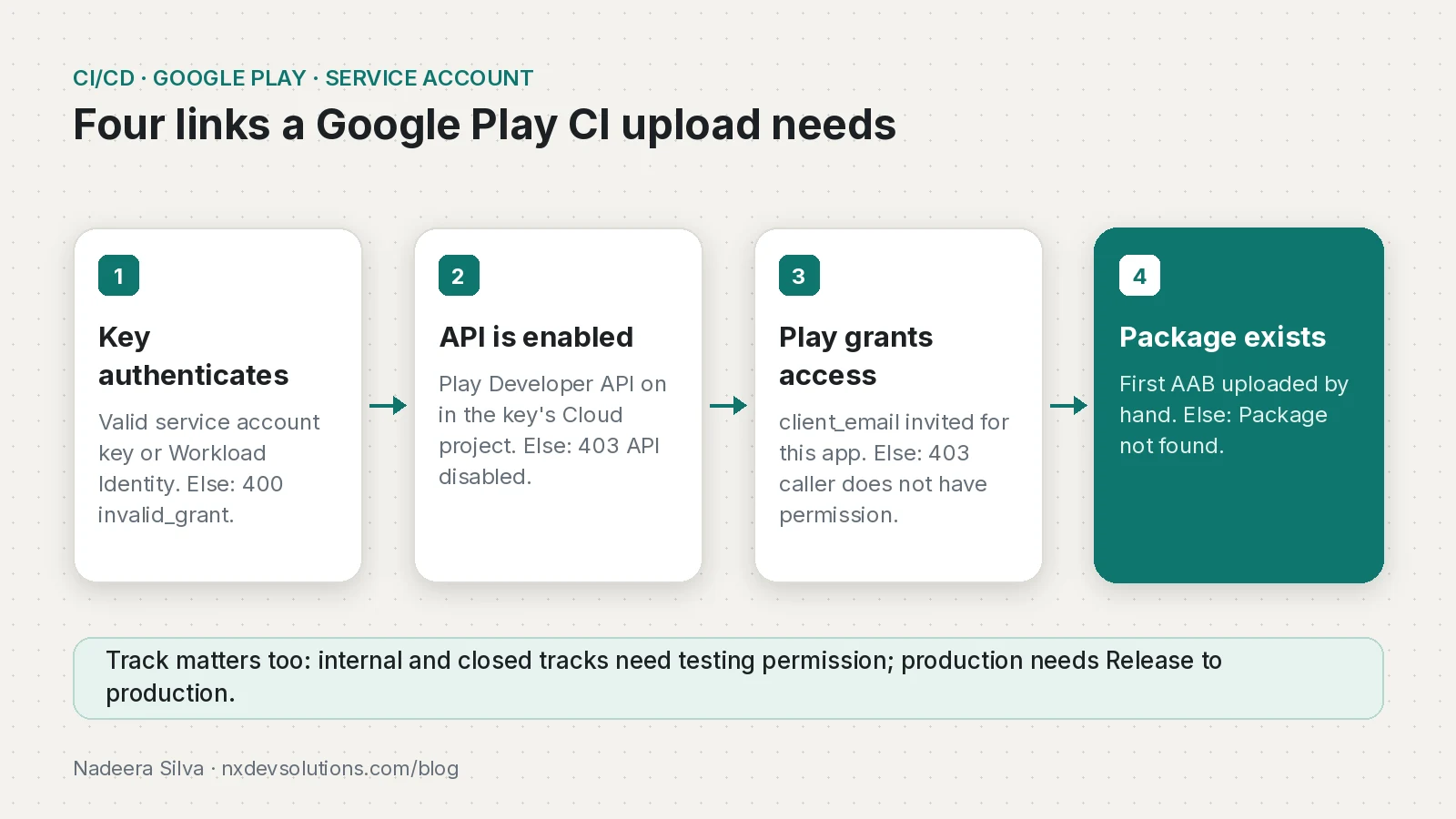
- The key authenticates. The JSON key (or Workload Identity Federation) must belong to a real, enabled service account. A deleted key or account fails earlier with
invalid_grant, not 403. - The API is enabled. The getting-started guide requires the Google Play Android Developer API to be enabled in the service account's Cloud project. If it isn't, the 403 message says the API "has not been used in project ... or it is disabled", which is a different fix.
- Play Console grants access to this app. Creating the account in Google Cloud does nothing in Play by itself. It has to be invited as a user in Users and permissions, with the app selected. This is where "The caller does not have permission" comes from.
- The package exists in that account. If Play has never seen the package name, you get "Package not found" instead. The upload-google-play README notes the package must already exist, so upload the first AAB by hand.
| Error text | What failed | Fix |
|---|---|---|
| invalid_grant: account not found / Invalid JWT Signature | Key or service account deleted, wrong or broken secret | Create a new key, store the whole JSON in the secret |
| 403 API has not been used in project ... or it is disabled | API off in the key's Cloud project | Enable Google Play Android Developer API in that project |
| 403 The caller does not have permission | Service account not invited, wrong developer account, or app not in its grant | Invite client_email in the app owner's Play Console with app access |
| Package not found | App never uploaded, or package name typo | Create the app and upload the first AAB manually |
| 403 on production only | Has testing permission but not production | Add Release to production, or target the internal track |
How do I fix it step by step?
1. Read the email out of the key you actually use in CI
Don't trust memory or a screenshot. Print the address from the same file or secret the pipeline uses.
jq -r '.client_email, .project_id' play-service-account.json
# ci-uploader@my-cloud-project.iam.gserviceaccount.com
# my-cloud-project
A very common cause is a CI secret that still holds an old key from another project, while the account you invited is a newer one.
2. Enable the API in that Cloud project
In Google Cloud Console, open the project shown as project_id, go to the Google Play Android Developer API page and click Enable. Google notes you no longer need to link the developer account to a Cloud project, so you won't find a linking step in Play Console's API access page anymore. Enabling the API and inviting the account is enough.
3. Invite the service account in the right Play Console
Sign in to the developer account that owns the app (for client work, that is the client's account, not yours). Then, following Play Console Help:
- Go to Users and permissions and click Invite new users.
- Paste the
client_emailexactly. - Under App permissions, add the app and enable Release apps to testing tracks. Add Release to production, exclude devices, and use Play App Signing only if CI publishes to production. Add Manage store presence if fastlane also uploads listings, screenshots or changelogs.
- Click Invite user.
4. Upload the first build manually (new apps only)
For a brand-new app, create it in Play Console with the same applicationId as android/app/build.gradle, upload the first AAB to Internal testing by hand and save the release. After that, CI can take over.
5. Point CI at the right track
The workflow below uploads to internal testing, which only needs testing permission. It uses r0adkll/upload-google-play@v1 (latest v1.1.5, April 2026), which runs on Node 24.
name: android-release
on:
  push:
    tags: ['v*']

jobs:
  upload:
    runs-on: ubuntu-latest
    steps:
      - uses: actions/checkout@v7
      - uses: subosito/flutter-action@v2
        with:
          channel: stable
      - run: flutter build appbundle --release
        # signing config comes from your key.properties secrets
      - uses: r0adkll/upload-google-play@v1
        with:
          serviceAccountJsonPlainText: ${{ secrets.PLAY_SERVICE_ACCOUNT_JSON }}
          packageName: com.example.myapp
          releaseFiles: build/app/outputs/bundle/release/app-release.aab
          tracks: internal
          status: completed
With fastlane the equivalent is upload_to_play_store(track: "internal", aab: "...", json_key_data: ENV["PLAY_SERVICE_ACCOUNT_JSON"]). The fastlane docs also describe Workload Identity Federation, which lets GitHub Actions authenticate without a long-lived JSON key.
How do I verify the fix before the next release?
fastlane run validate_play_store_json_key only proves the key can authenticate. It can pass while uploads still fail with 403, as people found in fastlane #16164. A better test is to open a Play "edit" for the package and delete it again. Nothing is uploaded or published.
// check-play-access.mjs
// Usage: node check-play-access.mjs service-account.json com.example.app
// npm i google-auth-library
import { readFileSync } from 'node:fs';
import { JWT } from 'google-auth-library';

const [keyFile, packageName] = process.argv.slice(2);
if (!keyFile || !packageName) {
  console.error('Usage: node check-play-access.mjs <key.json> <package.name>');
  process.exit(2);
}

const key = JSON.parse(readFileSync(keyFile, 'utf8'));
console.log('Service account:', key.client_email);
console.log('Cloud project:  ', key.project_id);

const client = new JWT({
  email: key.client_email,
  key: key.private_key,
  scopes: ['https://www.googleapis.com/auth/androidpublisher'],
});

const base = 'https://androidpublisher.googleapis.com/androidpublisher/v3/applications/' +
  encodeURIComponent(packageName) + '/edits';

try {
  const { data } = await client.request({ url: base, method: 'POST' });
  console.log('OK: the account can open an edit for', packageName);
  await client.request({ url: base + '/' + data.id, method: 'DELETE' });
  console.log('Edit deleted. Permissions look fine for uploads.');
} catch (err) {
  const status = err.response?.status ?? err.status ?? 'no HTTP status';
  const body = err.response?.data?.error ?? {};
  console.error('FAILED:', status, body.status ?? '', body.message ?? err.message);
  if (status === 403 && /caller does not have permission/i.test(body.message ?? '')) {
    console.error('Invite', key.client_email, 'in Play Console > Users and permissions for this app.');
  }
  process.exit(1);
}
I ran this on Node 24.22.1 with google-auth-library 11.3.4. With a key for an account that doesn't exist it stops at 400 invalid_grant, which tells you the problem is the key, not Play access. With a valid key, a 403 means step 3 is still missing, and "OK" means your next CI upload will get past authorization.
How do I stop it from coming back?
- Keep one documented service account per app and record its
client_emailin the repo README (the email is not secret, the key is). - Store the key as a CI secret, or move to Workload Identity Federation so there is no key to rotate.
- Grant app-level permissions only, with an access expiry date for contractors.
- Run the edit check after any change to Play Console users, a key rotation or a move to a new developer account.
- When an app is transferred to another developer account, invite the service account again in the new account.
If your releases also stall on iOS, my guide to the GitHub Actions "No signing certificate" error covers the Apple side, and the Play 12 testers for 14 days rule explains why a new personal account can't push to production yet even when uploads work.
Frequently asked questions
What does "The caller does not have permission" mean in Google Play?
It is an HTTP 403 from the Google Play Developer API. The service account in your key authenticated, but it has no Play Console access to the app you tried to upload to.
How do I give a service account access to Google Play Console?
In the developer account that owns the app, open Users and permissions, click Invite new users, paste the client_email from the JSON key, add the app under App permissions with Release apps to testing tracks, and click Invite user.
Do I still need to link a Google Cloud project in Play Console API access?
No. Google says you no longer need to link your developer account to a Cloud project. Enable the Google Play Android Developer API in the service account project and invite the account in Play Console.
Which permissions does a CI service account need to upload an AAB?
Release apps to testing tracks is enough for internal, closed and open testing. Add Release to production, exclude devices, and use Play App Signing to publish to production, and Manage store presence if CI also uploads store listings.
Why does fastlane validate_play_store_json_key pass but the upload fails?
That check only proves the key can authenticate with Google. Uploads also need Play Console access to the specific app, so a valid key with no app permission still gets the 403.
Why do I get Package not found instead of a permission error?
Play has no app with that package name in the developer account, or no build was ever uploaded. Create the app with the exact applicationId and upload the first AAB manually before using CI.
Can a freelancer fix this in the client Play Console?
Only the account owner or an admin can invite users. A freelancer with limited access should send the client the service account email and the exact permissions to grant.
Sources
- Getting Started: Google Play Developer API (Google for Developers)
- Add developer account users and manage permissions (Play Console Help)
- upload_to_play_store (fastlane docs)
- fastlane 2.241.2 (RubyGems)
- r0adkll/upload-google-play (GitHub)
- upload-google-play v1.1.5 release (GitHub, 2026-04-21)
- google-github-actions/auth (GitHub)
- Google Api Error: forbidden: The caller does not have permission (issue #16164) (fastlane on GitHub, 2020-03-12)
- Error: The caller does not have permission (issue #182) (GitHub)
- Edits: insert (Google for Developers)
- google-auth-library (npm)
Keep reading
- No Signing Certificate iOS Distribution Found: Flutter CI FixFlutter iOS builds failing in GitHub Actions with no signing certificate found? Import the .p12 and profile, sign manually and upload to TestFlight.
- Google Play 12 Testers for 14 Days: Get Production AccessNew personal Play Console accounts need 12 testers opted in for 14 days. Here is what counts, what resets the clock and how to pass first time.
- Target API Level 36: A Flutter Guide to the Play DeadlineGoogle Play's target API level 36 extension ends on 1 Nov 2026. Here is how to bump targetSdk in Flutter and what to fix and test before you upload.
Comments
Share a question or note about this article.
Loading comments…