
You build your Flutter app, upload app-release.aab to Google Play Console, and it's rejected with "Your Android App Bundle is signed with the wrong key". The bundle is signed, just not with the upload key Play has on file for this app. In a Flutter project that usually means the release build fell back to the debug key, Gradle picked the wrong keystore or alias, or CI rebuilt the keystore from a bad secret. Here is how to find which one you have and fix it, including when the key is gone.
Quick answer
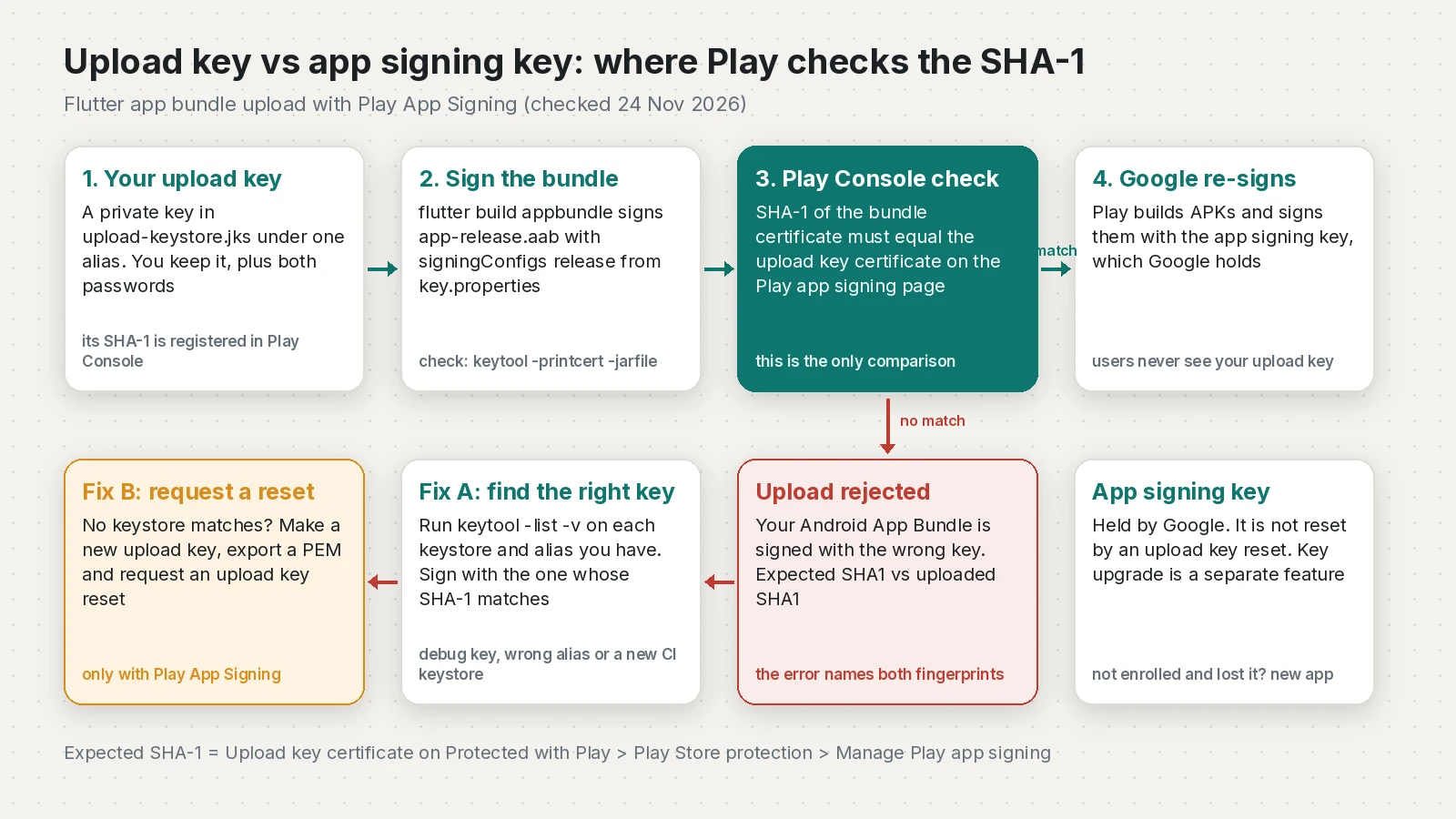
Play compares the SHA-1 of the certificate that signed your bundle with the upload key certificate registered for the app. Run keytool -printcert -jarfile app-release.aab and compare its SHA-1 with the "expected" one in the error. Then sign with the keystore and alias that match. If no key you have matches and the app uses Play App Signing, make a new upload key and request an upload key reset in Play Console.
What this means for your app or business
- Updates are blocked, users aren't. The live app keeps working, but no bug fix or new version can ship until the key problem is solved.
- Usually a short fix. If the right keystore still exists, finding it and fixing the build config is often under an hour.
- A lost key costs days, not the app. With Play App Signing, Google can register a new upload key. Google doesn't publish a turnaround; developers commonly report about 48 hours.
- The real risk is an app that was never enrolled. If you signed APKs yourself and lost that key, the app can't be updated. You'd publish a new listing.
- When to get help. If nobody on the team can say where the keystore and its passwords are kept, sort that out before the next release date.
What does the error say exactly?
The full message, as reported in a GitHub issue from April 2026, is:
Your Android App Bundle is signed with the wrong key. Ensure that your App Bundle is signed with the correct signing key and try again. Your App Bundle is expected to be signed with the certificate with fingerprint: SHA1: DF:04:1A:58:3B:E6:70:0F:6E:F3:48:50:87:7D:BF:FE:3F:10:F6:36 but the certificate used to sign the App Bundle you uploaded has fingerprint: SHA1: EE:40:3A:94:87:D9:F9:C5:A3:C1:A5:0C:55:F0:19:D7:10:FA:07:4BThe first SHA1 is the upload key Play expects. The second, after "but the certificate used to sign the App Bundle you uploaded has fingerprint", is the key you actually used. Copy both. Everything below is about making the second one equal the first.
Upload key or app signing key: which one is Play checking?
Play App Signing uses two keys:
- Upload key. You keep it in a
.jksor.keystorefile. It must be RSA 2048 bits or more. You sign every bundle with it, and Google uses it to check that the upload came from you. Google can reset it. - App signing key. Google holds it and uses it to sign the APKs that reach devices. If you manage it yourself and lose it, it can't be reset.
The wrong key error is always about the upload key. New apps are enrolled in Play App Signing automatically, so for most Flutter apps the app signing key never leaves Google.
Why is my Android App Bundle signed with the wrong key?
| Cause | How to spot it | Fix |
|---|---|---|
| Release build signed with the debug key | Bundle owner is CN=Android Debug | Add a release signingConfig |
| Wrong keystore file | SHA-1 differs, owner looks right | Find the keystore whose SHA-1 matches |
| Right keystore, wrong alias | keytool -list shows several aliases | Set keyAlias to the matching one |
| CI decoded a different or empty keystore | Works locally, fails in CI | Fail the job if the key doesn't match |
| Uploading to a different app | Expected SHA-1 belongs to another app | Check the package name in Play Console |
| Signed with the app signing key | You gave Google your own key, then registered a separate upload key | Sign with the upload key |
| Reset key used too early | Upload rejected right after a reset | Wait for the time Google gives you |
The first cause is built into every new Flutter project. The android/app/build.gradle.kts that flutter create generates in Flutter 3.50.1 ends with:
buildTypes {
    release {
        // TODO: Add your own signing config for the release build.
        // Signing with the debug keys for now, so `flutter run --release` works.
        signingConfig = signingConfigs.getByName("debug")
    }
}
So flutter build appbundle succeeds and produces a signed bundle, just signed with the debug key from ~/.android/debug.keystore.
How do I compare the SHA-1 fingerprints?
Check what signed the bundle you uploaded:
keytool -printcert -jarfile build/app/outputs/bundle/release/app-release.aabLook at Owner: and the SHA1: line under "Certificate fingerprints". If the owner is CN=Android Debug, O=Android, C=US, you've found the cause. An unsigned bundle prints Not a signed jar file. jarsigner -verify -verbose -certs app-release.aab confirms the signature and shows the signer name, but keytool -printcert is the quicker way to get the fingerprint.
Then check every keystore you can find, alias by alias:
keytool -list -v -keystore ~/upload-keystore.jksFor the registered key, open the app in Play Console and go to Protected with Play > Play Store protection > Manage Play app signing. The Upload key certificate section shows its SHA-1, the same value as "expected" in the error. Older guides call this page Test and release > App integrity, or Setup > App signing. You can also run ./gradlew signingReport from the android folder to see which keystore Gradle will use for each variant.
Fix A: How do I sign my Flutter app with the right upload key?
Once you know which keystore and alias match, wire them in the way Flutter's Android release guide shows. Create android/key.properties (Flutter's .gitignore already excludes it and *.jks):
storePassword=<store password>
keyPassword=<key password>
keyAlias=upload
storeFile=/Users/you/upload-keystore.jks
Load it at the top of android/app/build.gradle.kts and use it for release:
import java.util.Properties
import java.io.FileInputStream

val keystoreProperties = Properties()
val keystorePropertiesFile = rootProject.file("key.properties")
if (keystorePropertiesFile.exists()) {
    keystoreProperties.load(FileInputStream(keystorePropertiesFile))
}

android {
    // ...
    signingConfigs {
        create("release") {
            keyAlias = keystoreProperties.getProperty("keyAlias")
            keyPassword = keystoreProperties.getProperty("keyPassword")
            storeFile = keystoreProperties.getProperty("storeFile")?.let { file(it) }
            storePassword = keystoreProperties.getProperty("storePassword")
        }
    }
    buildTypes {
        release {
            signingConfig = signingConfigs.getByName("release")
        }
    }
}
Run flutter clean, then flutter build appbundle, and check the SHA-1 again before uploading.
If keytool says "Keystore was tampered with, or password was incorrect", that's a different error: the file is fine but storePassword is wrong. It's not a wrong key, so don't request a reset until you've tried the passwords you have.
Make CI fail loudly instead of signing with the wrong key
Most CI failures come from the keystore secret. Store it as base64 (base64 -w 0 upload-keystore.jks on Linux, base64 -i upload-keystore.jks on macOS) and save the expected SHA-1 as a repository variable. This guard script checks either a keystore or the finished bundle:
#!/usr/bin/env bash
# Fails unless an AAB (or a keystore alias) matches the expected upload key SHA-1.
# Usage: check-upload-key.sh aab <file.aab>
#        check-upload-key.sh keystore <file.jks> <alias>   (reads STORE_PASSWORD)
set -euo pipefail

: "${EXPECTED_UPLOAD_SHA1:?Set EXPECTED_UPLOAD_SHA1 to the upload key SHA-1 from Play Console}"
norm() { tr -d ' :\r\n' | tr '[:lower:]' '[:upper:]'; }
want=$(printf '%s' "$EXPECTED_UPLOAD_SHA1" | norm)

case "${1:-}" in
  aab)
    out=$(keytool -printcert -jarfile "$2" 2>&1) || { echo "::error::keytool failed: $out"; exit 1; }
    if grep -q "Not a signed jar file" <<<"$out"; then
      echo "::error::$2 is not signed"; exit 1
    fi
    if grep -q "CN=Android Debug" <<<"$out"; then
      echo "::error::$2 is signed with the Android debug key"; exit 1
    fi
    ;;
  keystore)
    : "${STORE_PASSWORD:?Set STORE_PASSWORD}"
    out=$(keytool -list -v -keystore "$2" -alias "$3" -storepass:env STORE_PASSWORD 2>&1) \
      || { echo "::error::cannot read keystore: $out"; exit 1; }
    ;;
  *) echo "usage: $0 aab <file> | keystore <file> <alias>"; exit 2 ;;
esac

got=$(grep -m1 'SHA1:' <<<"$out" | sed 's/.*SHA1:[[:space:]]*//' | norm)
if [[ "$got" != "$want" ]]; then
  echo "::error::Wrong upload key. Expected SHA1 $want but found ${got:-none}"
  exit 1
fi
echo "Upload key OK (SHA1 $got)"
And the GitHub Actions job that uses it:
name: android-release
on:
  workflow_dispatch:
  push:
    tags: ["v*"]

jobs:
  build-aab:
    runs-on: ubuntu-latest
    defaults:
      run:
        shell: bash # runs as bash -eo pipefail, so any failed check stops the job
    env:
      EXPECTED_UPLOAD_SHA1: ${{ vars.EXPECTED_UPLOAD_SHA1 }}
    steps:
      - uses: actions/checkout@v7
      - uses: actions/setup-java@v6
        with:
          distribution: temurin
          java-version: "17"
      - uses: subosito/flutter-action@v2
        with:
          channel: stable

      - name: Restore upload keystore
        env:
          KEYSTORE_BASE64: ${{ secrets.ANDROID_KEYSTORE_BASE64 }}
          STORE_PASSWORD: ${{ secrets.ANDROID_STORE_PASSWORD }}
          KEY_PASSWORD: ${{ secrets.ANDROID_KEY_PASSWORD }}
          KEY_ALIAS: ${{ secrets.ANDROID_KEY_ALIAS }}
        run: |
          for v in KEYSTORE_BASE64 STORE_PASSWORD KEY_PASSWORD KEY_ALIAS EXPECTED_UPLOAD_SHA1; do
            [ -n "${!v}" ] || { echo "::error::$v is empty"; exit 1; }
          done
          printf '%s' "$KEYSTORE_BASE64" | base64 --decode > "$RUNNER_TEMP/upload-keystore.jks"
          bash scripts/check-upload-key.sh keystore "$RUNNER_TEMP/upload-keystore.jks" "$KEY_ALIAS"
          cat > android/key.properties <<PROPS
          storePassword=$STORE_PASSWORD
          keyPassword=$KEY_PASSWORD
          keyAlias=$KEY_ALIAS
          storeFile=$RUNNER_TEMP/upload-keystore.jks
          PROPS

      - run: flutter build appbundle --release

      - name: Check the AAB signer
        run: bash scripts/check-upload-key.sh aab build/app/outputs/bundle/release/app-release.aab

      # Next: upload the bundle with your service account
The last check catches a debug-signed or unsigned bundle even if Gradle silently skipped key.properties. If the upload step itself fails with a permissions error, that's a service account problem, covered in The caller does not have permission in CI. The iOS side of the same pipeline is in No signing certificate in GitHub Actions.
Fix B: How do I request an upload key reset?
If no keystore you have matches, the Play Console Help steps are:
- Create a new upload key with
keytool(command below) or Android Studio. - Export its certificate as PEM.
- In Play Console, open Protected with Play > Play Store protection > Manage Play app signing.
- In Upload key certificate, click Request upload key reset, enter a reason, upload
upload_certificate.pemand click Request.
keytool -genkey -v -keystore ~/upload-keystore.jks -keyalg RSA \
        -storetype JKS -keysize 2048 -validity 10000 -alias upload
keytool -export -rfc -keystore ~/upload-keystore.jks -alias upload -file upload_certificate.pem
Google's help says configuring Play App Signing needs admin permission. If you see "You need permission", sign in as the account owner or ask them to do it. Google doesn't publish how long the reset takes. Developers report an email giving the date and time the new key becomes valid, typically around 48 hours later. Until then, a bundle signed with the new key is still rejected, so build it and wait.
How do I change the SHA-1 key in Play Console?
You can't edit the expected upload key SHA-1 directly. The upload key reset is how it changes. Upgrade key in the App signing key section is a different feature: it replaces the key Google signs your APKs with, for example after a compromise. It doesn't fix this error.
What if the app was never enrolled in Play App Signing?
There's no reset button, because there's no separate upload key. You need the original keystore and its password. Older apps that sign APKs themselves also see "To upload an Android App Bundle you must be enrolled in Play App Signing" when they first try a bundle. If the original key is lost, the only way forward is a new app with a new package name.
How do I prevent it from happening again?
- Keep the upload keystore in two places, for example a password manager and an encrypted backup.
- Store the store password, key password and alias next to it.
- Write the upload key SHA-1 in your release notes or README. It's public, not a secret.
- Replace the debug
signingConfigthe day you create the project. - Run the guard script in CI on every release build.
- Before the first release of a client app, confirm who owns the Play account and who is an admin.
Frequently asked questions
What does 'Your Android App Bundle is signed with the wrong key' mean?
Play Console compared the certificate that signed your bundle with the upload key registered for the app, and they differ. The first SHA1 in the message is the key Play expects and the second is the key you used.
How do I check which key signed my app bundle?
Run keytool -printcert -jarfile app-release.aab and read the Owner and SHA1 lines. If the owner is CN=Android Debug, the release build was signed with the debug key.
Where do I find the upload key SHA-1 in Play Console?
Open the app and go to Protected with Play, then Play Store protection, then Manage Play app signing. The Upload key certificate section shows the SHA-1 that Play expects.
How long does a Google Play upload key reset take?
Google does not publish a turnaround time. Developers commonly report an email giving the date and time the new key becomes valid, about 48 hours after the request, and uploads with the new key are rejected until then.
Who can request an upload key reset?
Google's help says configuring Play App Signing needs admin permission on the Play Console account. If you see a You need permission message, ask the account owner or an admin to make the request.
Can I change the SHA-1 key in Play Console?
Not directly. The expected upload key changes only through an upload key reset, while Upgrade key replaces the app signing key that Google uses for APKs and does not fix this error.
What if I lost the key and the app is not enrolled in Play App Signing?
Then there is no separate upload key to reset, and Google cannot recover your signing key. Without the original keystore and password, you have to publish a new app with a new package name.
What does 'Keystore was tampered with, or password was incorrect' mean?
keytool or Gradle could not open the keystore with the password you gave, usually because storePassword is wrong. It is a password problem, not a wrong key, so try the passwords you have before requesting a reset.
Sources
- Use Play App Signing (Play Console Help)
- Sign your app (Android Developers, 2026-03-06)
- Build and release an Android app (Flutter documentation)
- Flutter app template build.gradle.kts (3.50.1) (Flutter on GitHub, 2026-11-20)
- Flutter SDK releases (Flutter documentation, 2026-11-20)
- Play Console wrong key error (full message) (GitHub, 2026-04-15)
- Your Android App Bundle is signed with the wrong key (Stack Overflow, 2018-09-25)
- How to request a new upload key (Google Play Developer Community, 2023-11-14)
- keytool command reference (JDK 21) (Oracle)
Keep reading
- Google Play "The caller does not have permission": Fix CI UploadsYour AAB upload from GitHub Actions or fastlane fails with a 403? Invite the service account for that app in Play Console and verify it with a tested script.
- No Signing Certificate iOS Distribution Found: Flutter CI FixFlutter iOS builds failing in GitHub Actions with no signing certificate found? Import the .p12 and profile, sign manually and upload to TestFlight.
- Google Play 12 Testers for 14 Days: Get Production AccessNew personal Play Console accounts need 12 testers opted in for 14 days. Here is what counts, what resets the clock and how to pass first time.
Comments
Share a question or note about this article.
Loading comments…